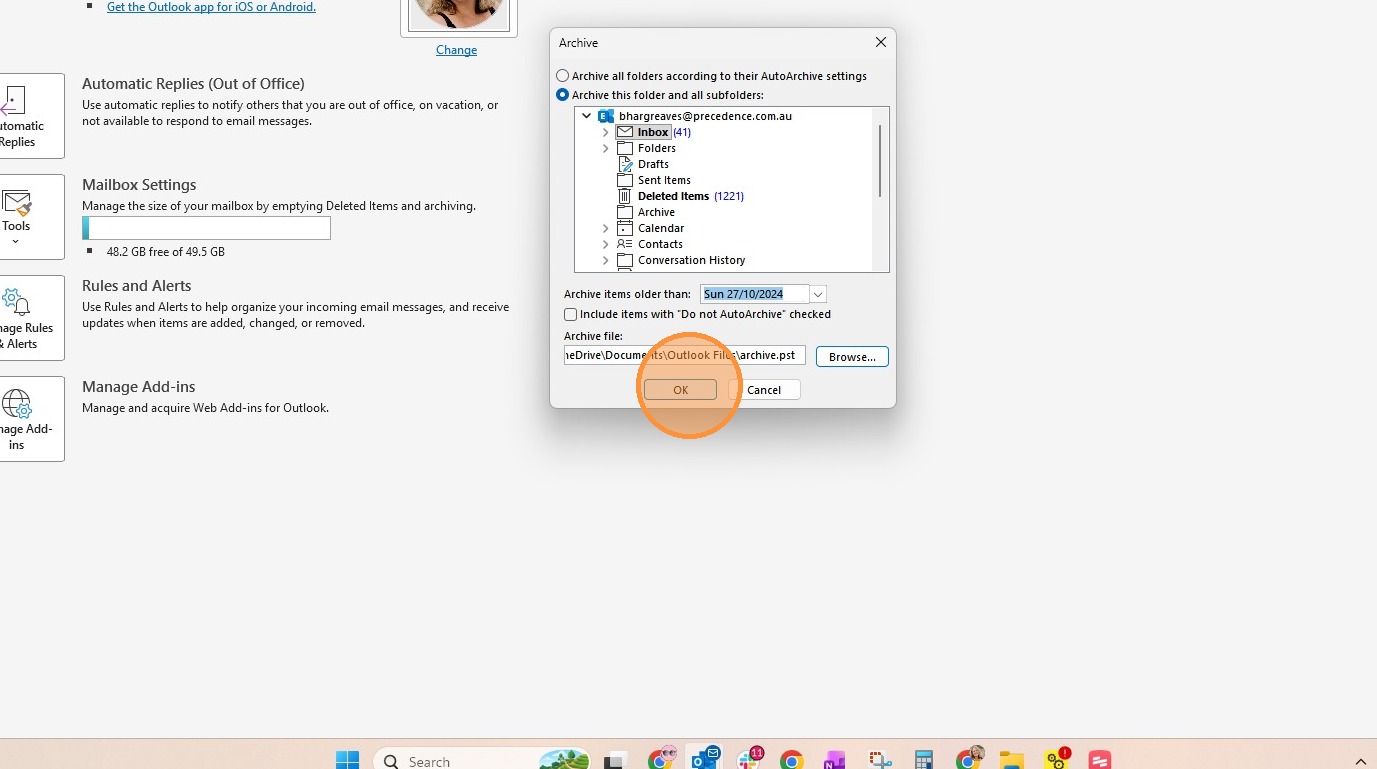
Before proceeding, please carefully consider the archive date you choose. Any emails older than the selected date will be moved out of your mailbox on the server and into a local archive (.pst) file on your computer.
This means those emails may no longer appear across all devices or in webmail searches unless the archive file is opened in Outlook on that specific computer.
We strongly recommend:
- Only archiving emails that you no longer need regular access to
- Saving the archive file to a location that is included in your computer backups
- Avoiding saving the archive file to temporary folders, Downloads, or locations that are not backed up
The archive file becomes your responsibility to retain and back up once created.
1. Click "File"
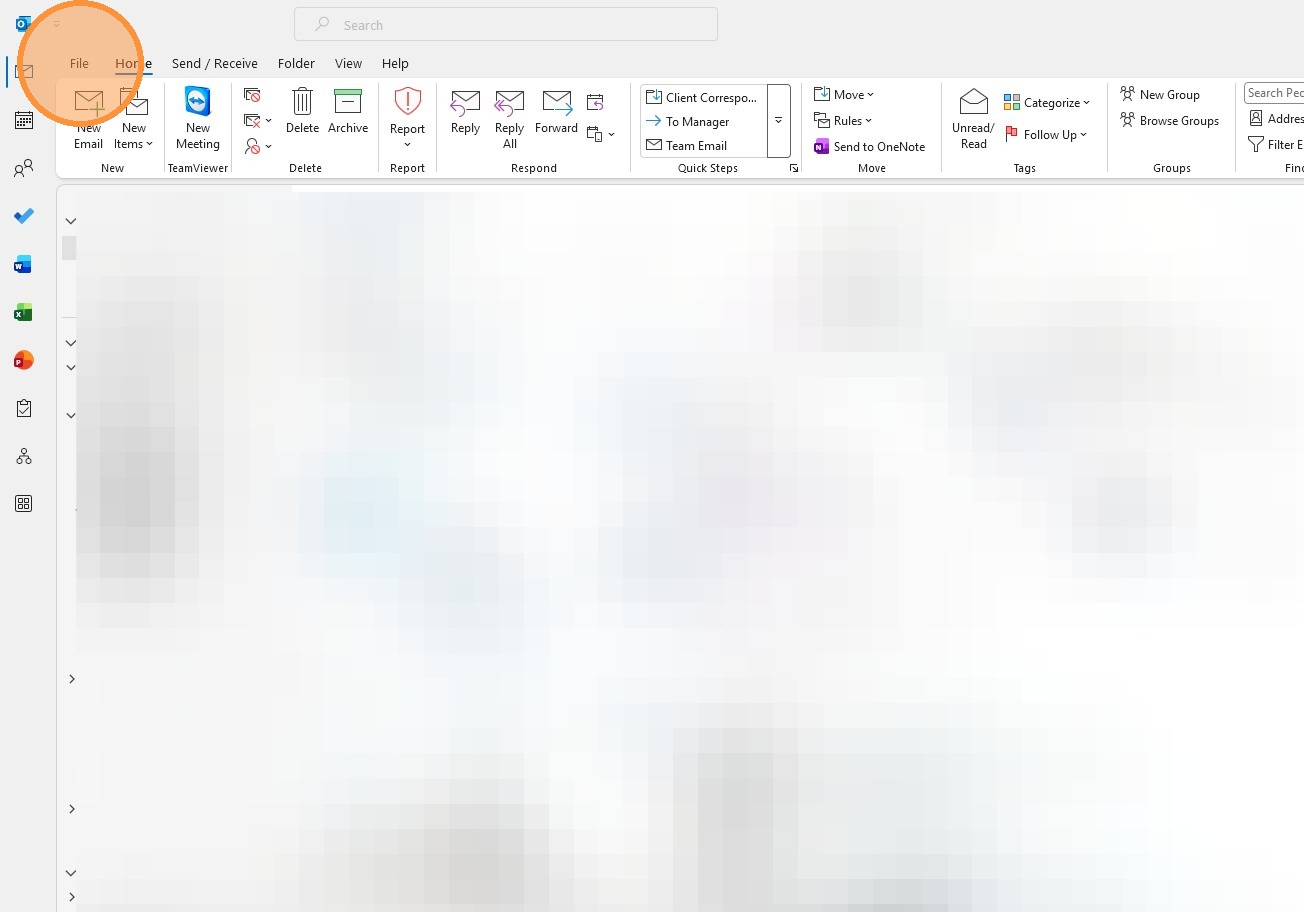
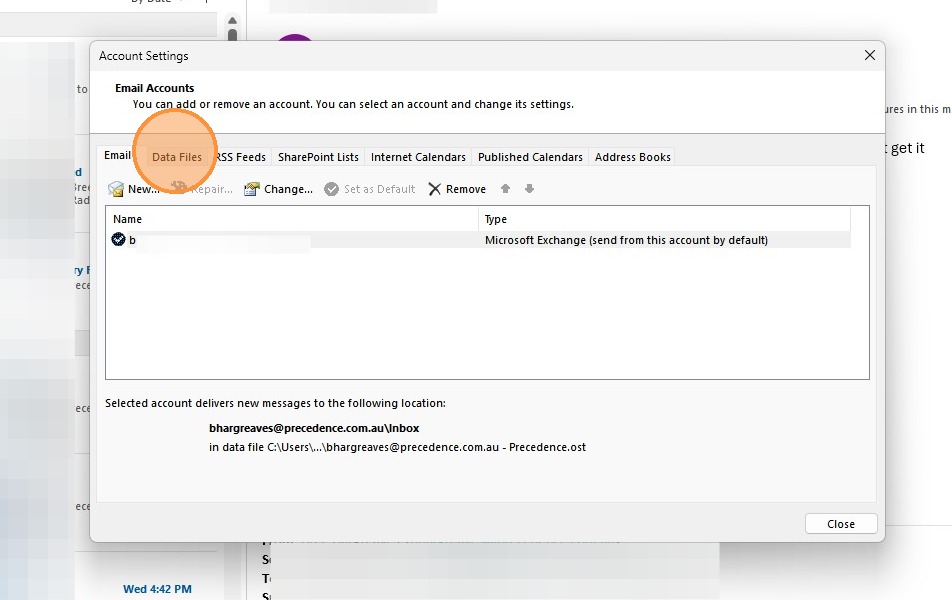
2. Click "Account Settings" and select "Account Settings" from the dropdown menu

3. Select the "Data Files" tab
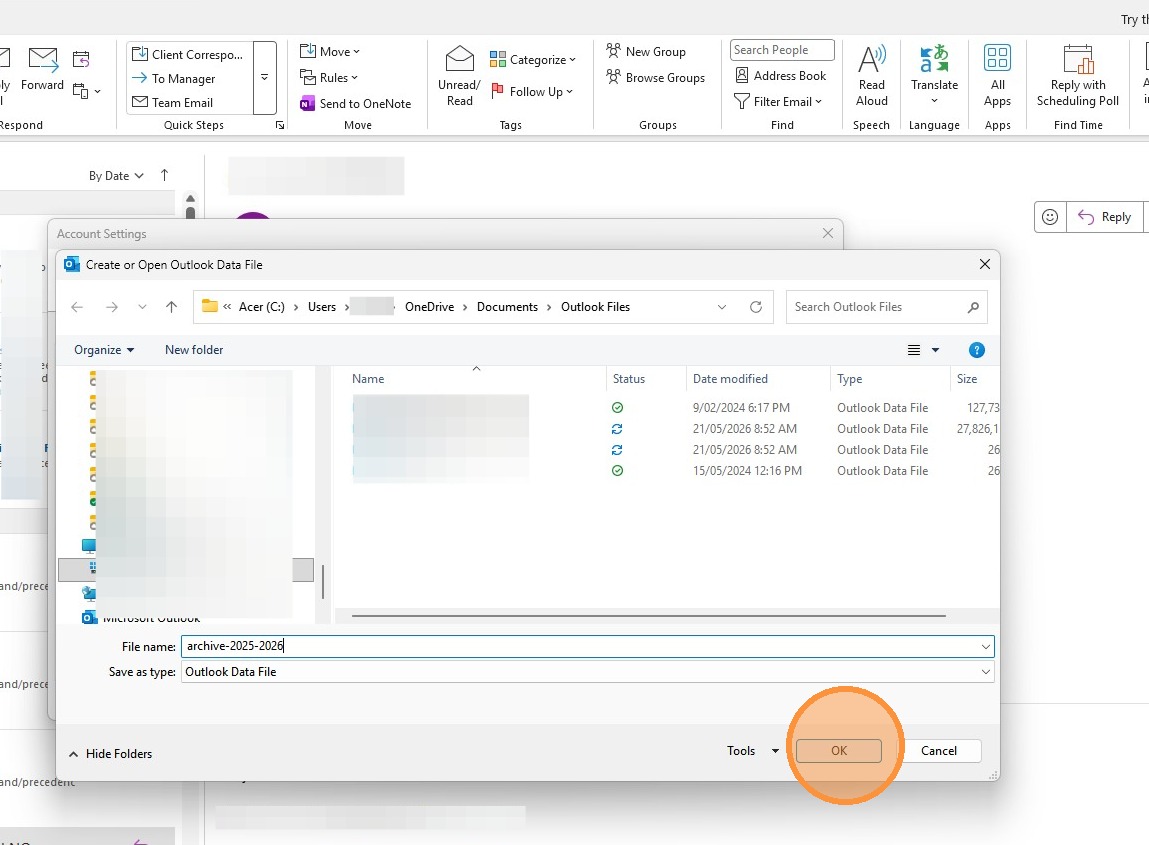
4. Click Add, Choose an existing archive OR add a new filename for a new datafile. Click "OK". Click Close.
Archive Initiation
1. Open the File menu.
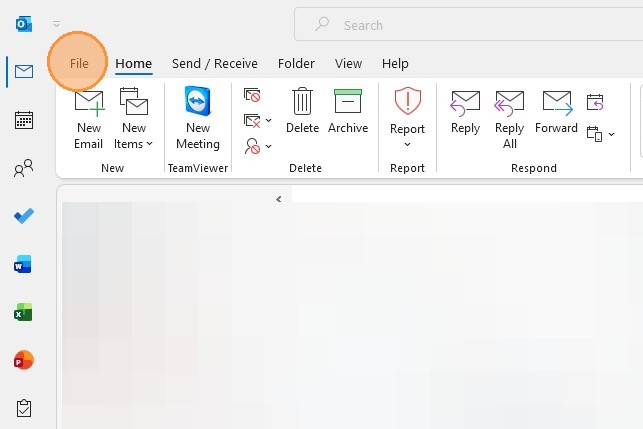
2. Click "Tools"
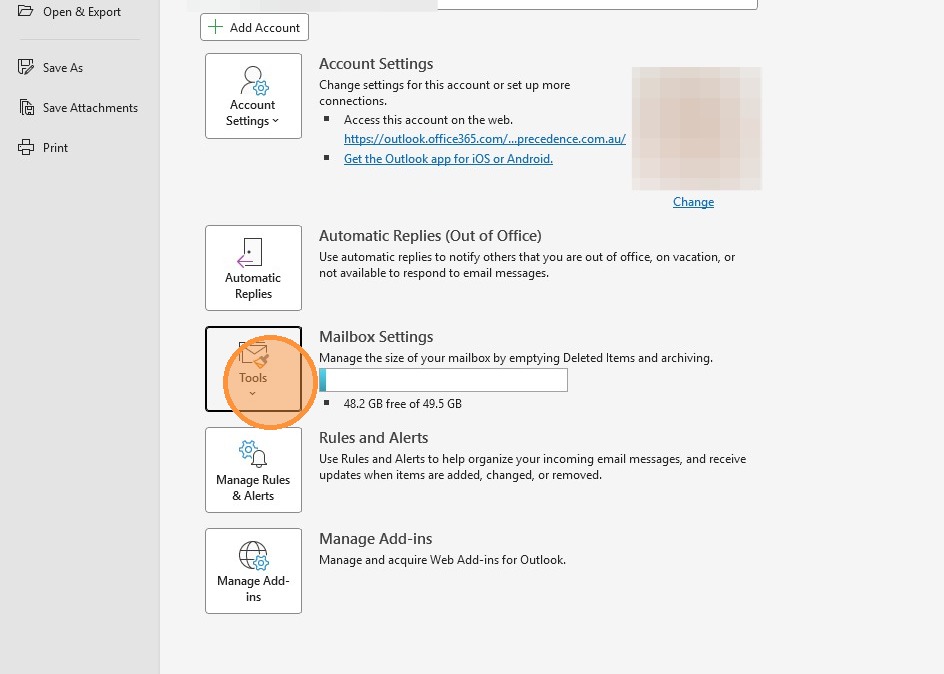
3. Clean Up Old Items
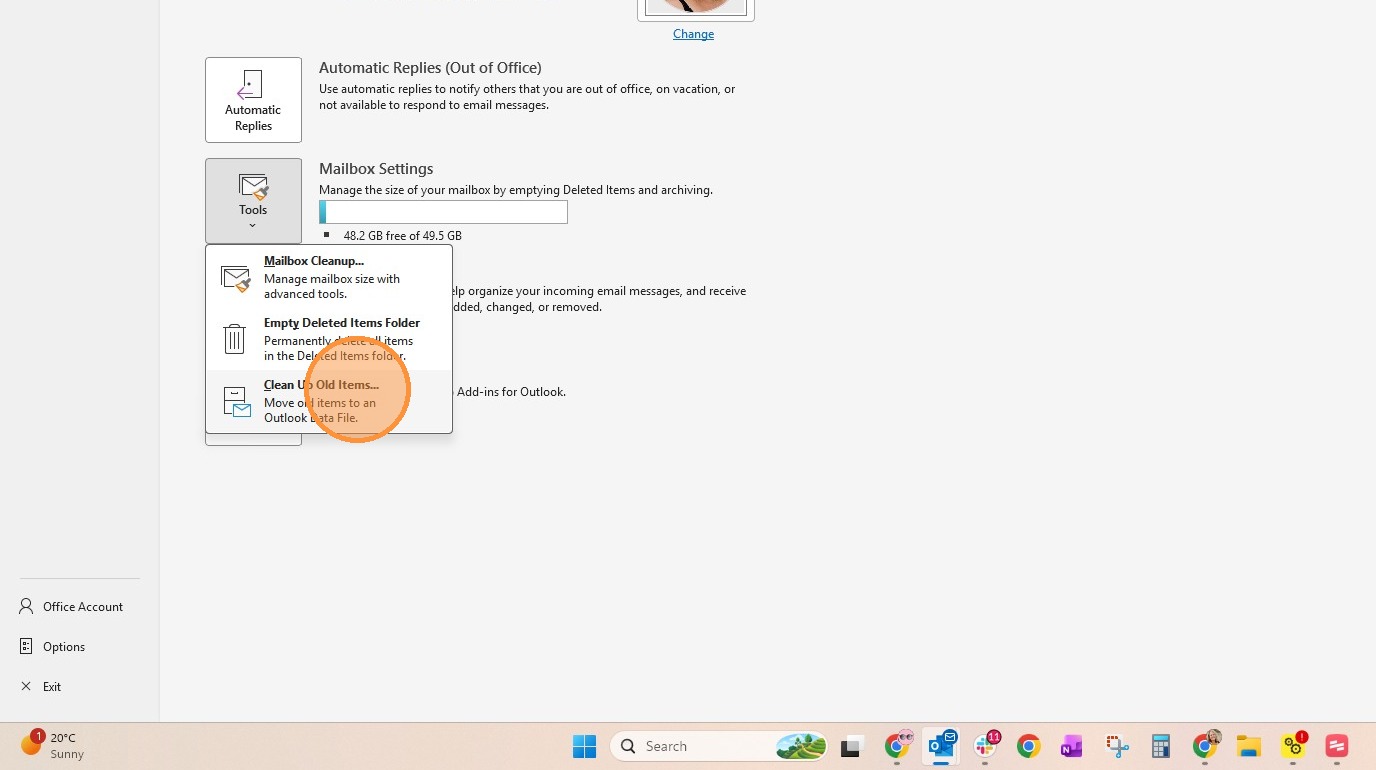
Archive Configuration
4. Select the folder you wish to Archive, subfolders will also be created.
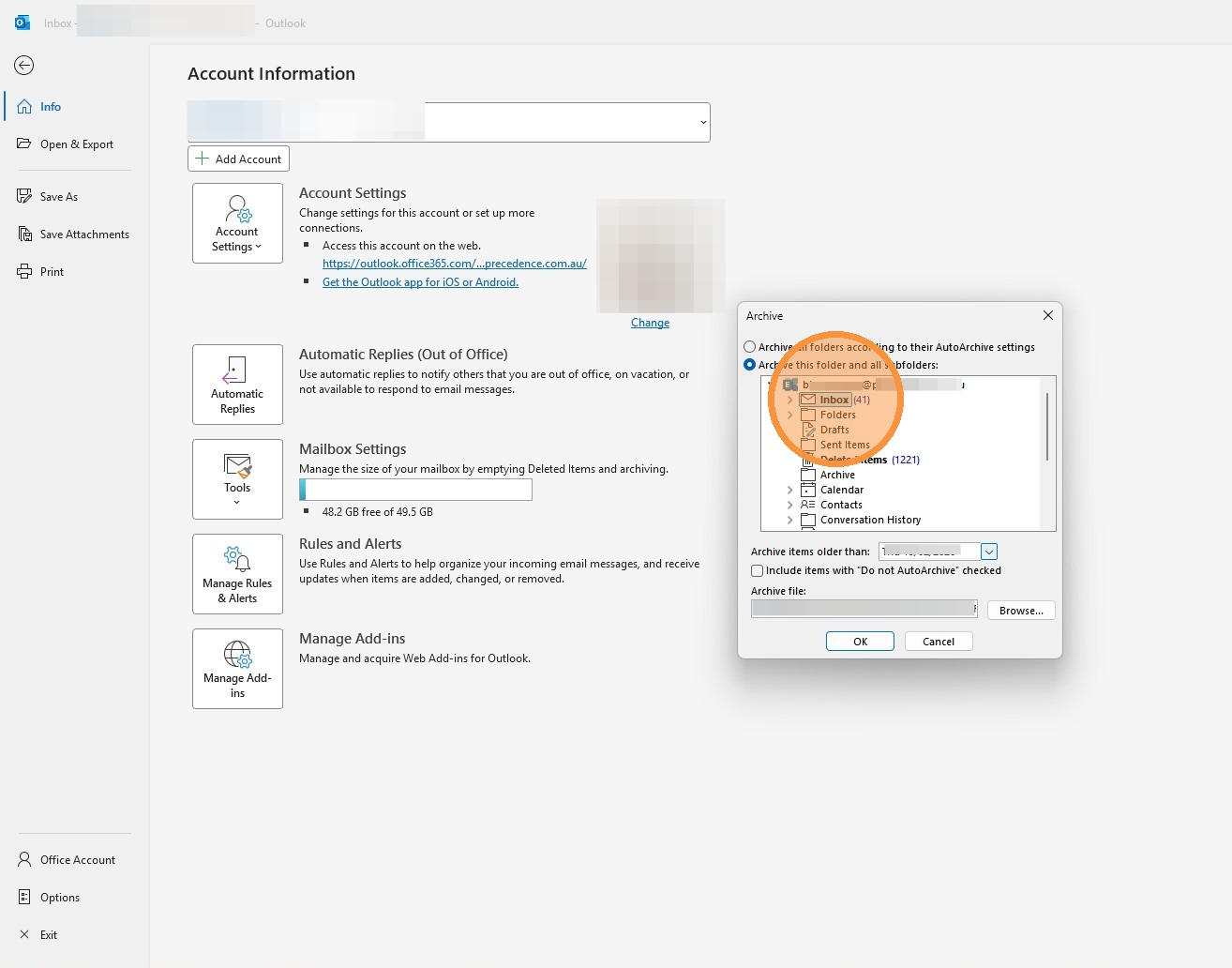
5. Specify the cutoff date for items to be archived. Ensure that it is far enough back that you would not want to have easy access on all devices.
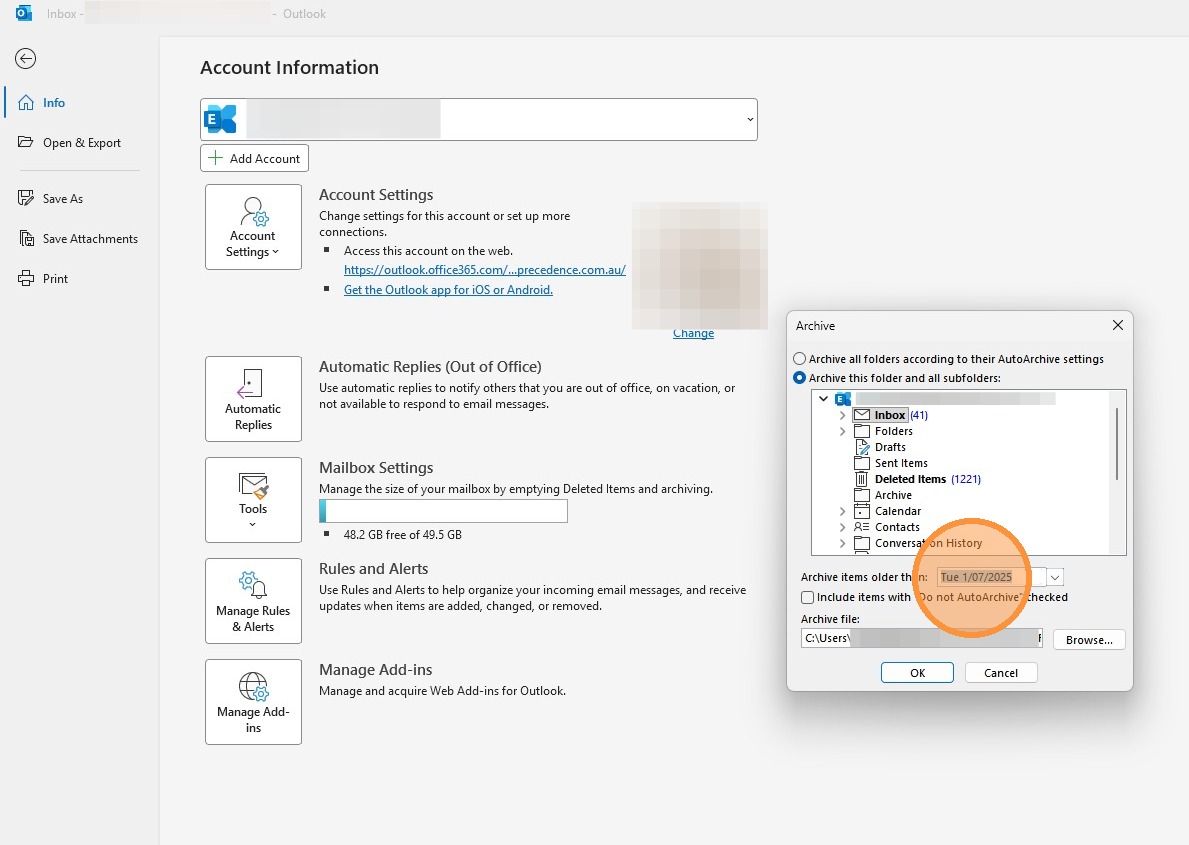
6. Click "Browse" to select a save location for the archive .pst file and confirm. IMPORTANT! Ensure that this is being saved to a location that will be backed up on your PC.
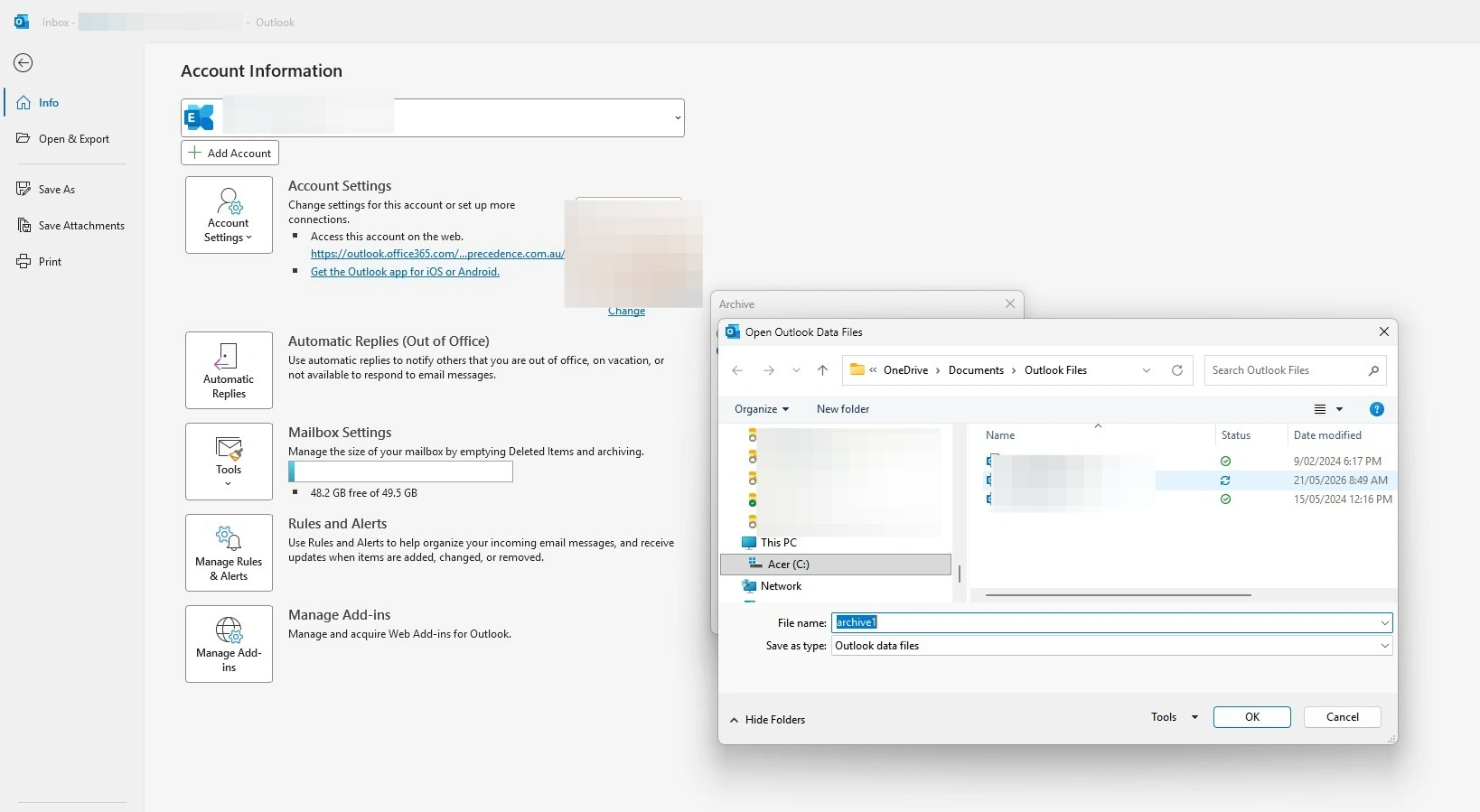
7. Click "OK" to begin the archiving process.